Back
Back April 20, 2026
Ghost Mannequin Photography: How to Shoot & Edit Clothing Without a Model
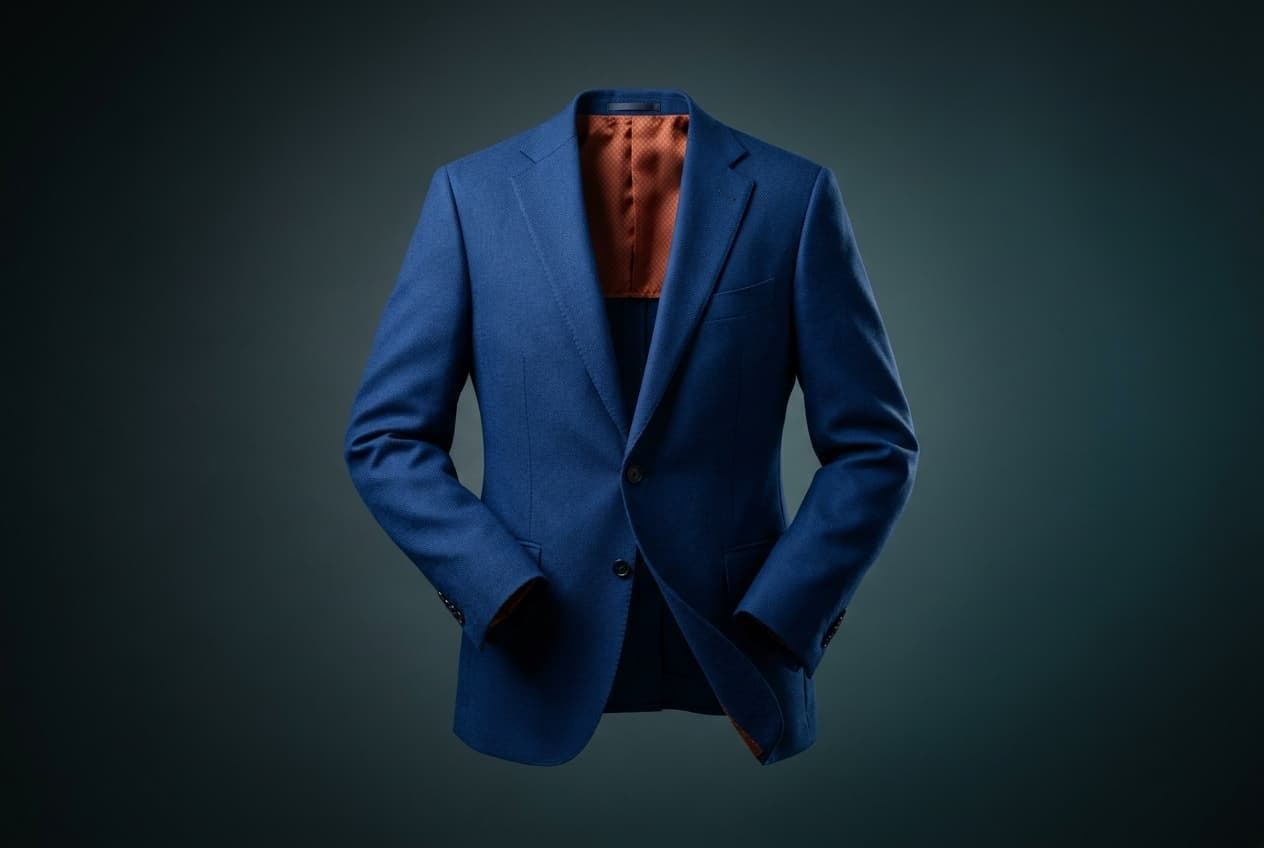
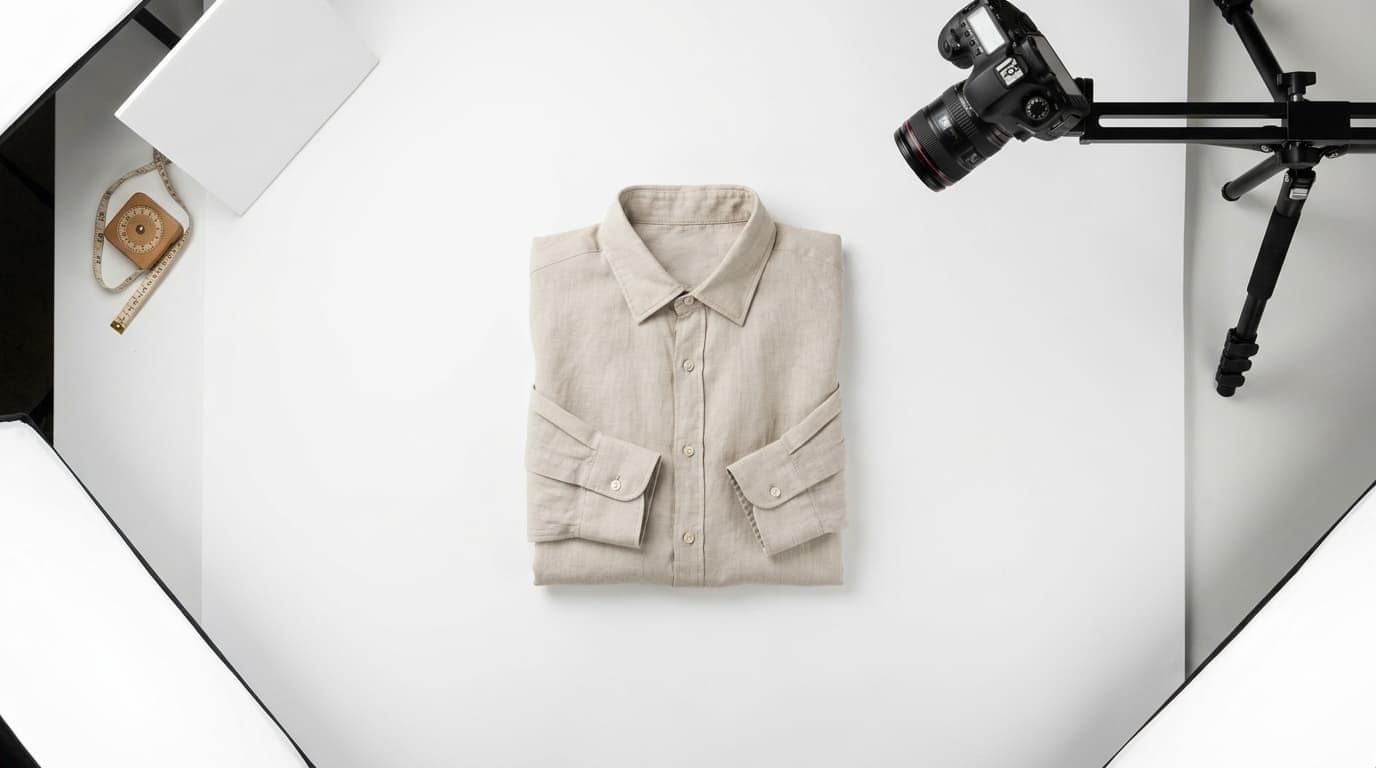
Ghost Mannequin Photography: How to Shoot & Edit Clothing Without a Model
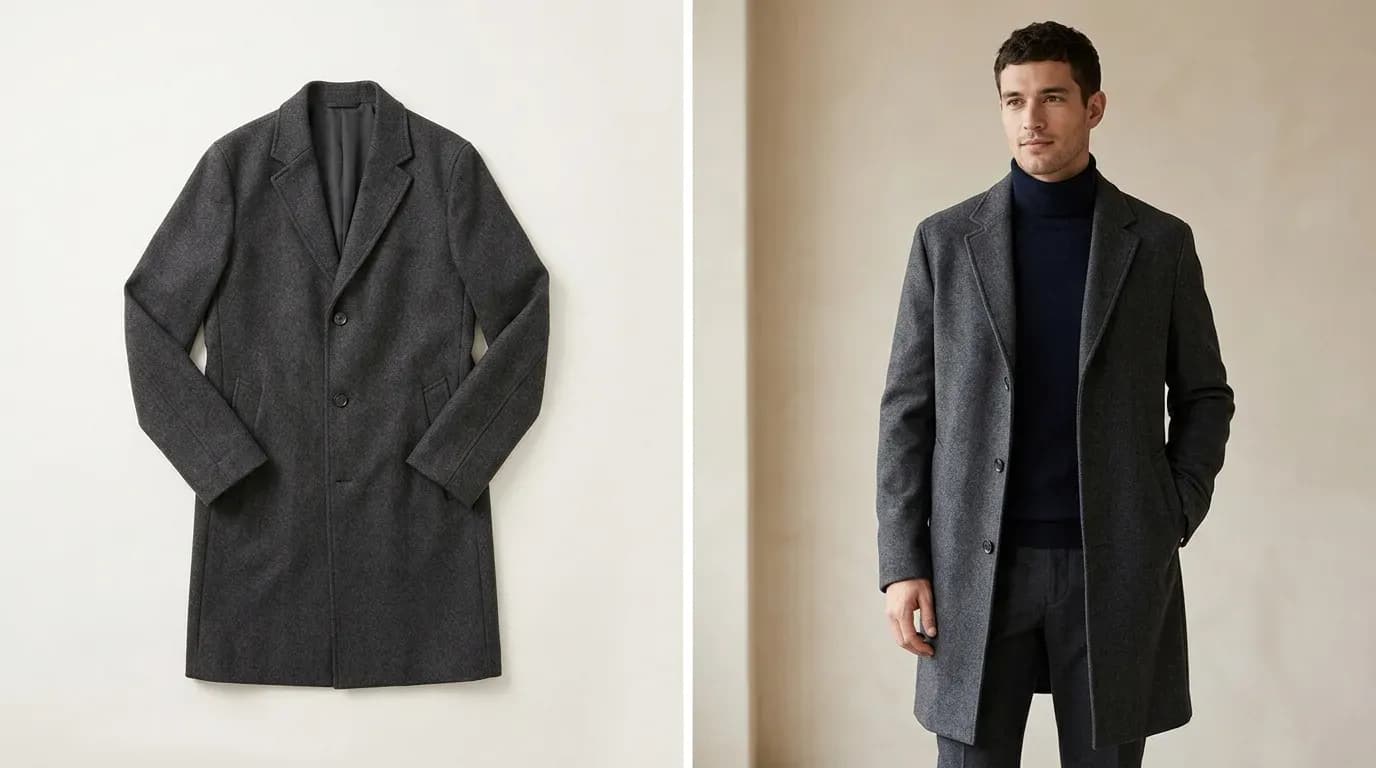
Ghost mannequin photography is one of those skills that looks simple in YouTube thumbnails and is genuinely difficult in practice. The concept is straightforward - photograph clothing on a mannequin, then composite out the mannequin in post so the garment appears to be worn by an invisible body. The execution involves precise camera work, careful lighting, multiple exposures, and anywhere from 20 minutes to two hours of Photoshop work per garment.
This guide walks you through the full process, step by step. You will get the real workflow: setup, shooting, compositing, and the parts most tutorials skip. You will also get honest time and cost estimates, because the gap between "how hard can it be?" and how hard it actually is costs sellers real money.
If you want to understand what ghost mannequin photography is, why brands use it, and how it compares to other product photography methods, read our complete guide to the ghost mannequin effect first. This post assumes you already know what you are working toward and are ready to do it.
If you want to skip the manual process entirely, FuturMotion's ghost mannequin alternative produces the same professional result from a flat-lay photo in under 60 seconds - no mannequin, no Photoshop, no studio. We will cover that option at the end.
What You Need for Ghost Mannequin Photography
Before you shoot a single frame, you need the right equipment. Here is what a functional ghost mannequin setup actually costs:
| Item | Estimated Cost | Notes |
|---|---|---|
| Half-body mannequin | $150-$300 | Torso + neck. Full-body runs $300-$500. |
| DSLR or mirrorless camera | $400-$1,200+ | Any with manual mode. APS-C sensor is fine. |
| 50mm or 85mm lens | $100-$400 | Avoid wide-angle - distorts garment shape. |
| 2-3 softbox lights + stands | $150-$400 | Speedlights with diffusers work too. |
| White seamless paper backdrop | $30-$80 | 2m wide minimum. Gray also works. |
| Backdrop stand | $50-$100 | Adjustable height. |
| Clips and sewing pins | $10-$20 | Essential for fitting loose garments. |
| Adobe Photoshop | $21/month | Required for compositing. |
| Total setup | $900-$2,500+ | One-time cost, excluding ongoing Photoshop. |
This is the minimum for consistent, professional results. You can start with a cheaper camera and fewer lights, but the lower your starting quality, the harder the editing gets.
Step 1: Setting Up Your Studio
Lighting consistency is everything in ghost mannequin clothing photography. The compositing process in Photoshop involves combining two separate images - your main garment shot and an "interior plate" shot - and matching them believably. If your lighting shifts between the two, the seam will show.
Camera settings to lock in before you start:
- Aperture: f/8 to f/11 for sharpness across the garment
- ISO: 100 to 200 (lowest clean ISO your camera offers)
- Shutter speed: 1/125s as a starting point, adjust to exposure
- White balance: set manually (do not use Auto)
Lighting placement:
- Key light: 45 degrees to one side of the mannequin, slightly above garment height
- Fill light: opposite side of key, at lower power (50-75% of key) to soften shadows
- Optional rim light: behind and to the side to separate the garment from the background
Set your camera on a tripod and do not move it between shots. This is non-negotiable. The compositing relies on pixel-perfect alignment between your mannequin shot and your interior plate.
Place the mannequin at a height so the camera shoots level with the center of the garment. Shooting up or down at an angle makes the distortion nearly impossible to correct in post.
Step 2: Shooting the Garment on the Mannequin
Dress the mannequin properly before you shoot. For shirts and jackets, button or zip fully. For loose-fit items, use pins and clips to take in excess fabric from behind - this keeps the silhouette clean without altering the front-facing appearance. You want the garment to look naturally worn, not stuffed or baggy.
For each garment, shoot:
- Front shot - Fill the frame. Leave consistent margin on all sides. Keep the garment straight in the frame.
- Back shot - Do not touch the camera. Rotate the mannequin to face away, reshoot from the same position.
- Detail shots - Collar, cuffs, special fabric details. These are typically shot closer but should use the same lighting setup.
Garment-specific tips:
- T-shirts and casual tops: These are the easiest. Make sure the collar is lying flat and any sleeve folds are consistent.
- Button-front shirts: Button all buttons. If the collar stands up, pin it flat. The collar-to-neckline area is where most beginners struggle in compositing.
- Jackets and blazers: Fatten the mannequin with padding if needed to fill the shoulders. A jacket that hangs loose on the mannequin will look deflated in the final image.
- Dresses: A full-length mannequin helps. Without one, you will need to stitch multiple shots together.
Take more frames than you think you need at each stage. You cannot go back and reshoot once the garment is off the mannequin, and selecting the best frame from three options is much easier than trying to fix a mediocre one in Photoshop.
Step 3: Shooting the Interior Plates
This is the step most tutorials treat as an afterthought. It is actually the step that makes or breaks the final composite.
The ghost mannequin effect requires that the inside of the collar and neckline (and sometimes armholes and hem) appear visible in the final image, as if a real torso is inside. You create this by photographing the interior of the garment separately - this is called an interior plate.
How to shoot the interior plate:
- With the garment still on the mannequin, turn the collar or neckline inside out - folding it back so the interior lining is visible.
- Do not move the camera or change any settings.
- Shoot the inside of the collar from the same angle as your main shot.
- For jackets: shoot the armhole interior the same way.
- For dresses or hem-based compositing: fold the bottom hem up and photograph the inside of the lower garment.
Take multiple frames at this stage. The interior plate needs to align precisely with your main image in post, and subtle differences in how you folded the collar will require time-consuming corrections.
Why most DIY ghost mannequin results look off: The shooter forgot or rushed the interior plate. They took one quick shot with different lighting, or at a slightly different angle, and the neck join shows a visible seam in the final image.
Step 4: Photoshop Compositing - The Hard Part
Let's be direct: ghost mannequin Photoshop work is genuinely difficult. Most sellers who try it once and stop are not doing it wrong - they are discovering that compositing two images together with precision takes skill that takes time to build.
Here is the full process:
1. Open your main garment image in Photoshop.
2. Remove the mannequin using the Pen tool. Select the Pen tool (P). Zoom to 100%. Trace the outline of the garment carefully, placing anchor points around every curve and edge. For a standard shirt this path will take a beginner 45-90 minutes. An experienced retoucher does it in 20-35 minutes. This is not a step you can speed up with shortcuts without sacrificing edge quality.
When your path is closed: right-click → Make Selection → 0.5px feather → OK. Invert the selection and delete the background. Add a layer mask to make this non-destructive.
3. Prepare your interior plate. Open the interior plate image as a separate file. Repeat the Pen tool process to isolate just the interior collar/lining area you need. Copy this selection.
4. Paste the interior plate into the main document. Create a new layer below your main garment layer. Paste the interior plate. Use Free Transform (Cmd/Ctrl + T) to align it with the neckline opening in the garment image.
5. The neck join - where most people get stuck. The neck join is where your main garment image and the interior plate meet. Problems to watch for:
- Color/exposure mismatch - Even with consistent lighting, the inside of a collar photographs differently than the outside. You will likely need to run Levels or Curves on the interior plate layer to match it to the main image.
- Edge artifacts - A hard selection edge at the join will show as a visible halo or seam. Use a soft brush on the layer mask to feather the join by 2-4 pixels.
- Alignment shift - If the camera or mannequin moved even slightly between the two shots, the interior will not sit naturally inside the neckline. Minor shifts can be corrected with Free Transform; larger misalignments require redoing the plate.
Realistic time estimates per garment:
- Experienced retoucher: 20-45 minutes
- Intermediate Photoshop user: 45-90 minutes
- Beginner: 1-2 hours, and results will be inconsistent until you have done 15-20 garments
For a 30-piece collection, that is 10-20 hours of editing at intermediate skill level. Before you start, be honest with yourself about whether that time is well spent.
Step 5: Final Cleanup and Export
Once the composite is complete:
Retouching:
- Remove lint, stray threads, and dust using the Healing Brush or Clone Stamp
- Smooth any visible wrinkles or creases that distract from the garment (subtle - preserve natural drape)
- Check all edges for pixelation or halo artifacts at 100% zoom
Background:
- Your background should be pure white (#FFFFFF for most e-commerce platforms) or transparent (PNG) depending on where the image will be used
- If shooting against gray, use Levels to push the background to pure white - drag the highlight slider until it clips to white, then finesse so the garment edges stay clean
Background removal tip: If you are processing garments at volume, FuturMotion's AI background removal for fashion can automate this step specifically for clothing with accurate edge detection around fabric.
Color correction:
- Match white balance to your brand standard if you have one
- Adjust brightness/contrast to match other product images in your catalog
- Consistency across your catalog matters more than any single perfect image
Export settings:
- Format: JPEG for web (90-95% quality)
- Color space: sRGB
- Resolution: 72dpi for web; 300dpi if also using for print
- Long edge: 2,000-2,500px (matches most e-commerce platform requirements)
- Naming: Use your SKU number in the filename for catalog management
Common Mistakes (And How to Avoid Them)
1. Moving the camera between shots. If the camera shifts even slightly between the main shot and the interior plate, the composite will not align. Fix: tripod, always. Never handhold.
2. Changing lighting between the main and interior shots. A color temperature shift of even 200K shows in the join. Fix: manual white balance, no auto adjustments, both shots in the same lighting session.
3. Rushing the pen tool path. A rough selection creates jagged edges and harsh cutouts. Fix: take the time to place anchor points precisely, especially around collar curves and arm edges.
4. Skipping interior plates for some garments. "This one has a high neckline, I can skip the plate" is a common rationalization. In the final image, a closed neckline on a floating shirt looks like exactly what it is. Fix: shoot interior plates for every garment.
5. Inconsistent background white levels across a catalog. If your backgrounds are slightly different shades of white across 50 images, your catalog looks amateurish even if each individual image looks fine. Fix: calibrate and export to the same background level every session.
6. Not pinning loose fabric. A shirt that hangs loose on the mannequin will look empty and shapeless in the final image. Fix: always use pins and clips to shape the garment naturally from behind before shooting.
When to Outsource Instead
If you have more garments than time, outsourcing ghost mannequin photo editing to a retouching service is often the smarter decision.
Typical outsourcing costs:
| Service Type | Price Range | Turnaround |
|---|---|---|
| Editing only (you shoot) | $3-$10 per image | 24-48 hours |
| Full service (they shoot + edit) | $15-$50 per SKU | 2-5 business days |
Outsourcing makes sense when:
- You have more than 20 SKUs to process in a month
- Your time is worth more than $15-50/hour (for most brand owners, it is)
- You have consistent photography but lack Photoshop skills
- You are launching a new collection with a tight deadline
What to look for in a retouching service:
- Samples in your garment category (activewear requires different technique than formal wear)
- Clear turnaround SLA
- Revision policy
- Per-image or subscription pricing - for high-volume brands, subscription rates ($200-$400/month for 50+ images) are significantly cheaper per image
At $15-50 per SKU, a 100-piece catalog costs $1,500-$5,000 in editing alone, every season. That compounds fast.
The AI Shortcut: Ghost Mannequin Without a Mannequin
At this point you have a realistic picture of what traditional ghost mannequin photography involves - the equipment, the studio, the Photoshop hours, or the outsourcing cost. Here is the alternative.
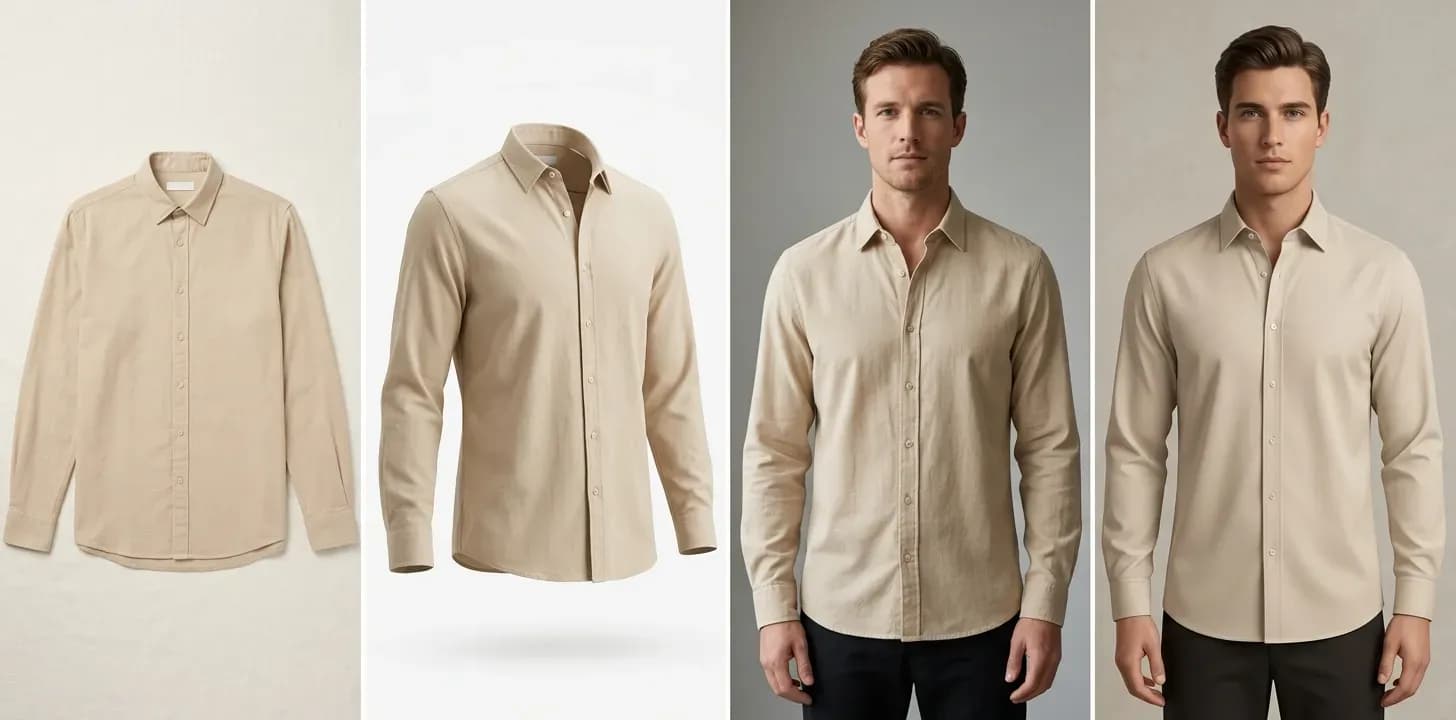
FuturMotion is an AI fashion photography platform built specifically for clothing brands. The workflow is: upload a flat-lay photo of your garment → get a professional on-model image and a Living Motion video in under 60 seconds. No mannequin, no studio, no Photoshop.
The output is not just a ghost mannequin-style floating garment - it is a garment on an AI-generated model, with the fabric drape and fit rendered accurately by a model trained on fashion imagery. For brands that need both a static product image and scroll-stopping video for social or ads, FuturMotion produces both from one flat-lay upload.
How it compares:
| Method | Setup Cost | Per-Image Cost | Time Per SKU | Output |
|---|---|---|---|---|
| DIY ghost mannequin | $900-$2,500 | ~$21/mo Photoshop | 20-120 min | Static photo |
| Outsource editing | $0 | $3-$50/SKU | 24-48hr turnaround | Static photo |
| FuturMotion AI | $0 | From $0.50/image | Under 60 seconds | On-model photo + Living Motion video |
Pricing starts at $25/month (Basic, 2,000 credits) and scales to $49/month (Creator, 5,000 credits) and $199/month (Studio, 25,000 credits). Over 500 fashion brands use it for product photography.
The meaningful difference versus traditional ghost mannequin product photography: you also get the video. Ghost mannequin gives you a clean static image for your product page. FuturMotion gives you that plus a motion video for your ads, emails, and social posts - content type that drives 25-35% higher CTR than static images on the same placement.
For brands that want to explore what AI-assisted fashion photography looks like across their catalog - not just ghost mannequin style, but full on-model shoots and video - FuturMotion's fashion photography platform covers the full range of use cases.
If you have already built a ghost mannequin workflow and it is working, keep it. If you are still at the stage of deciding whether to invest in the equipment and learn the Photoshop process, try the AI alternative before committing $1,500+ and 20 hours of learning curve.
FAQ
How do I do ghost mannequin photography at home?
You can set up a DIY ghost mannequin studio at home with a half-body mannequin ($150-$300), two softbox lights, a DSLR or mirrorless camera, and a white seamless backdrop. The shooting process is manageable at home - the harder part is the Photoshop compositing, which requires removing the mannequin and blending interior plate shots for the neck and collar. Budget 1-2 hours per garment when you are learning. For a simpler route, AI tools like FuturMotion produce the same effect from flat-lay photos with no studio needed.
What is the ghost mannequin technique?
The ghost mannequin technique (also called invisible mannequin photography) is a product photography method where clothing is shot on a mannequin, then the mannequin is removed in post-production. A second "interior plate" shot of the garment's inside collar and hem is composited into the image, creating the illusion of a floating, 3D garment that looks naturally worn. The ghost mannequin technique is standard in e-commerce fashion because it presents garments with shape and dimension at a lower cost than on-model shoots.
Can I do DIY ghost mannequin photography without a mannequin?
You have a few options: you can use a dress form (cheaper, around $60-$150, but less realistic body shape), pin the garment to a flat surface and photograph flat-lay style, or use AI ghost mannequin software that applies the effect to a flat-lay image without any physical mannequin. The AI route is the fastest and cheapest for most sellers - platforms like FuturMotion start at $0.50 per image with no equipment required.
How long does ghost mannequin photo editing take?
Expect 20-45 minutes per garment for an experienced Photoshop user, and 1-2 hours per garment as a beginner. The most time-consuming step is the Pen tool selection around the garment outline. Interior plate blending at the neck join adds another 10-20 minutes depending on how well the shots align. For a 30-piece collection, that is 10-60 hours of total editing time.
What software do I use for ghost mannequin photo editing?
Adobe Photoshop is the industry standard for ghost mannequin photo editing. The core workflow uses the Pen tool for precise selections, layer masks for non-destructive editing, and Free Transform for aligning interior plates. Photoshop costs $21/month (Photography plan). GIMP is a free alternative but lacks the Pen tool precision and color management tools that make the workflow clean at professional quality.
Can AI replace ghost mannequin photography?
For most small-to-mid size clothing brands, yes - AI tools now produce results that are comparable or superior to traditional ghost mannequin for the use cases that matter most (e-commerce product pages, ads, social content). The distinction is that AI tools like FuturMotion generate on-model photos rather than hollow floating garments, which convert 20-30% better than any flat presentation. AI also produces motion video output that ghost mannequin photography never could. For brands that need the specific ghost mannequin aesthetic (common in luxury or minimalist brand guidelines), the traditional method still applies.
What is invisible mannequin photography?
Invisible mannequin photography is another term for ghost mannequin photography. The names are used interchangeably - "invisible mannequin" describes the end result (the mannequin is invisible in the final image) while "ghost mannequin" describes the production method (the mannequin is edited out to create a ghost-like shape). Both terms refer to the same product photography technique.
How much does outsourcing ghost mannequin editing cost?
Outsourcing ghost mannequin photo editing typically costs $3-$10 per image for editing-only services (where you provide the photos) and $15-$50 per SKU for full-service studios that handle shooting and editing. For brands processing 50+ images per month, some services offer monthly subscriptions at $200-$400. Turnaround is typically 24-48 hours for editing-only, 2-5 business days for full-service.
Related Articles
Read our other article
Dive into more guides to help you grow
May 28, 2026How to Photograph Clothes to Sell Online (2026 Guide)
Compare all 4 clothing photography methods by budget and skill - flat lay, ghost mannequin, on-model, and AI - and find the right approach for your catalog.
 May 4, 2026
Flat Lay vs. On-Model Photos: Which Actually Converts Better?
The conversion data behind flat lay vs. on-model photography-costs, tradeoffs, and the middle-ground options that close the gap without a $10K shoot.
 Apr 28, 2026
Flat Lay Clothing Photography: Complete Setup Guide for Ecommerce
Set up flat lay clothing photography on any budget - gear, lighting, styling, and a practical path to upgrading flat lays into on-model shots with AI.